Tutorials
How to Install macOS 14 Sonoma on VMware (Step-by-Step Guide) | LoopGuy
Running macOS 14 Sonoma VM in VMware – The Complete Guide
Want to run macOS 14 Sonoma inside VMware Workstation Player? This step‑by‑step guide covers everything: from downloading the ISO and unlocking VMware, to editing the .vmx file and installing VMware Tools. You’ll be up and running in no time.
💡 NOTE: macOS higher than version 12 requires a CPU with AVX2 instruction support. Check your CPU specs before proceeding.
Prerequisites & Downloads
- Download a macOS Sonoma .iso — or create your own (video guide)
- Download VMware Workstation Pro (Latest) (official site)
- Download macOS Unlocker for VMware Workstation (GitHub)
Installing and Configuring VMware
- Install VMware Workstation Player, accepting the defaults.
- Extract the downloaded macOS Unlocker archive.
- Inside the extracted folder, right‑click
Unlocker.exe→ Run as administrator. - Click the Patch button.
- Wait for patching to complete before continuing.
Creating the Sonoma VM
- Launch VMware Workstation Player.
- Click Continue to use Workstation Player for free for non‑commercial use.
- Click Finish.
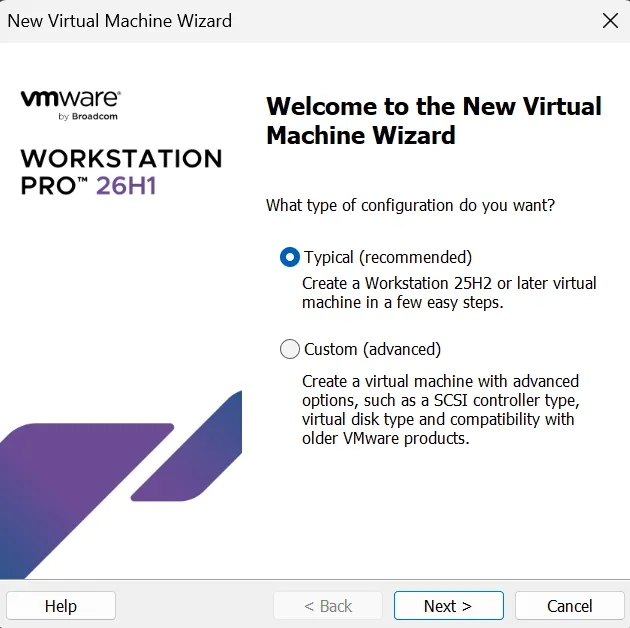
- Click Create a New Virtual Machine on the right side.
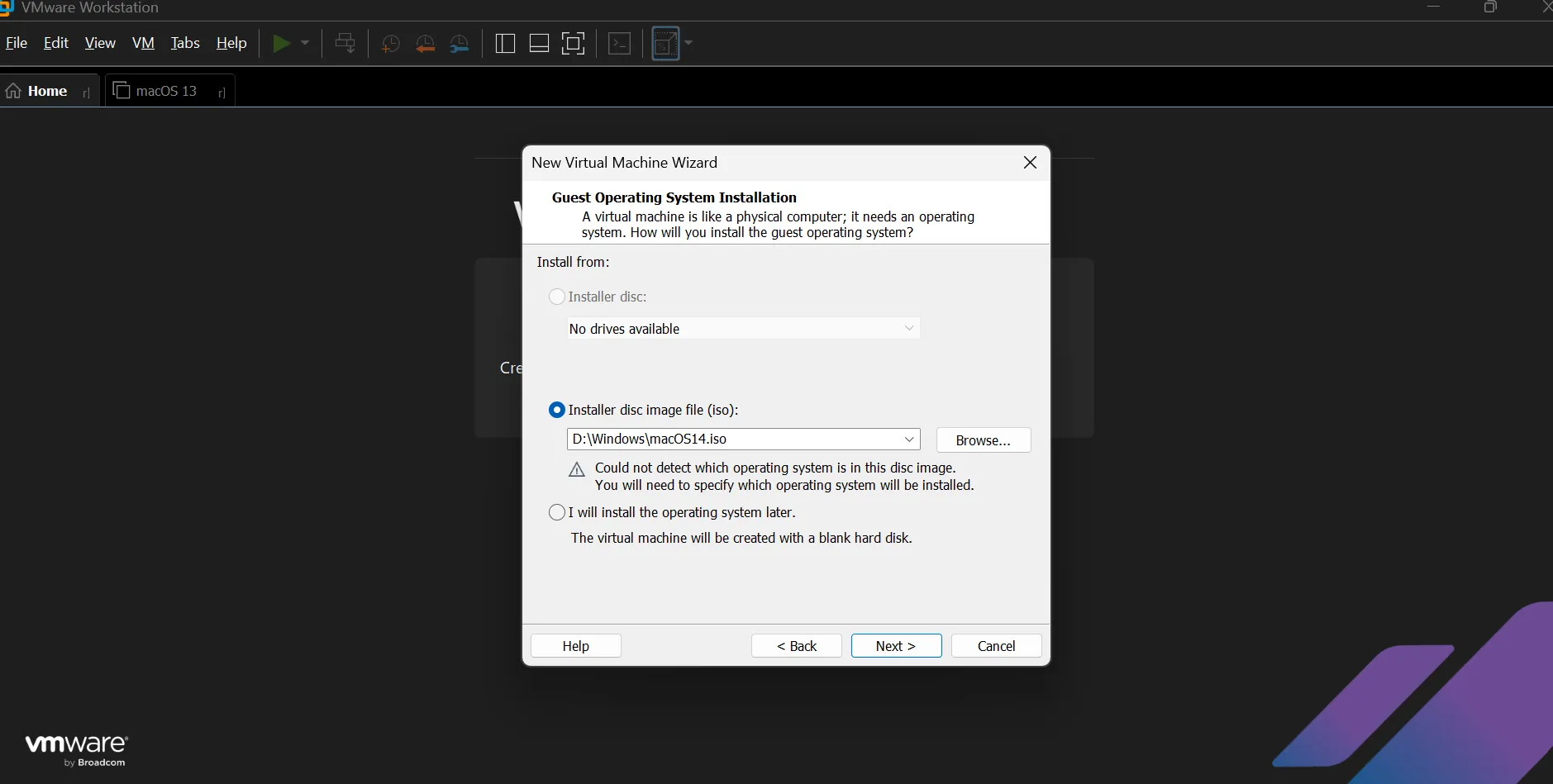
- Select Installer disc image file (iso) → Browse to and select the downloaded macOS Sonoma .iso → Click Next.
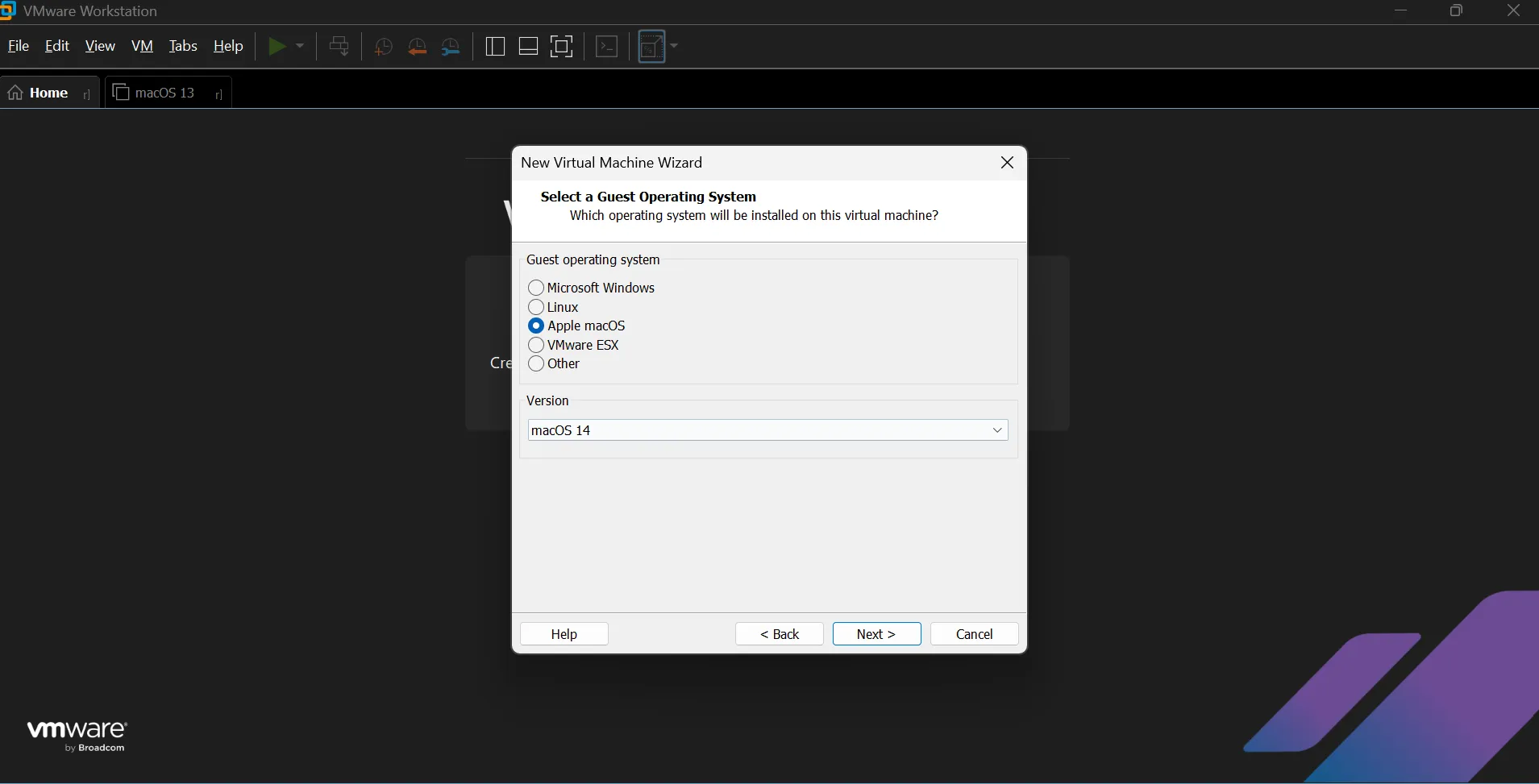
- Select Apple Mac OS X and macOS 14 → Click Next.
- Name the VM MacOS14 and set the path to store the VM files → Click Next.
- Adjust the disk size if necessary → Click Next.
- Click Finish.
Critical .vmx File Tweaks
Open File Explorer and navigate to the VM files. Edit the .vmx file with a plain‑text editor (Notepad, VS Code, etc.).
1. Set board-id.reflectHost
Search for board-id.reflectHost and set the value to "FALSE":
board-id.reflectHost = "FALSE"2. Change ethernet0.virtualDev
Search for ethernet0.virtualDev and set the value to "vmxnet3":
ethernet0.virtualDev = "vmxnet3"3. Append these lines at the bottom
board-id = "Mac-AA95B1DDAB278B95"
hw.model.reflectHost = "FALSE"
hw.model = "MacBookPro19,1"
serialNumber.reflectHost = "FALSE"
serialNumber = "C01234567890"
Save the file and close the editor.
Power On and Install macOS Sonoma
- Right‑click on the MacOS14 VM → Power On.
- After an initialization sequence, the macOS Setup should start.
- Select a Language → Click the next arrow.
- Select Disk Utility.
- Select the VMware Virtual SATA Hard Drive Media → Click Erase.
- Name the drive MacOS → Set the Format to APFS → Click Erase.
- Click Done → Close Disk Utility.
- Click Install macOS.
- Click Continue → Agree → Agree again.
- Select the MacOS disk → Click Install.
- Wait while macOS installs files — the VM will reboot several times.
- Select your Country or Region → Click Continue.
- Confirm languages and keyboard layout → Click Continue.
- Click Not Now on the Accessibility screen.
- Click Continue on the Data & Privacy screen.
- Select Not Now on the Migration Assistant screen.
- Select Set Up Later and then Skip on the Apple ID screen.
- Click Agree → Agree again.
- Enter a name, user name, password → Click Continue.
- Click Continue → Select Use or Don't Use for Location Services.
- Pick a timezone → Click Continue.
- Uncheck Share Mac Analytics with Apple → Click Continue.
- Click Set Up Later on the Screen Time screen.
- Pick a theme → Click Continue.
- Welcome to macOS 14 Sonoma 🎉
Install VMware Tools (optional, but recommended)
- Right‑click the Install MacOS disc on the desktop → Eject.
- On the VMware toolbar click Player → Removable Devices → CD/DVD → Settings.
- Click Browse next to ISO Image File → Browse to the extracted Unlocker files
tools→ Selectdarwin.iso. - Click the Connected checkbox.
- Click OK.
- Inside the VM, double‑click the mounted VMware tools and run the installer.
- When prompted, go into the Security settings and scroll to the bottom → Click Allow next to VMware → Reboot.
- After rebooting double‑click the mounted VMware tools and run the installer again.
- After the install succeeds, reboot again.
🙏 Credit: This guide is based on the original work by i12bretro.
Huge thanks for the detailed walkthrough and resources.
Huge thanks for the detailed walkthrough and resources.
Frequently Asked Questions
Is this guide beginner friendly?
Yes. This tutorial is written step-by-step for beginners.
Does this work in 2026?
Yes. This article is updated regularly with latest changes.
Where can I learn more?
Browse more tutorials on LoopGuy.

Comments (0)
No comments yet. Be the first to comment!
Leave a Comment