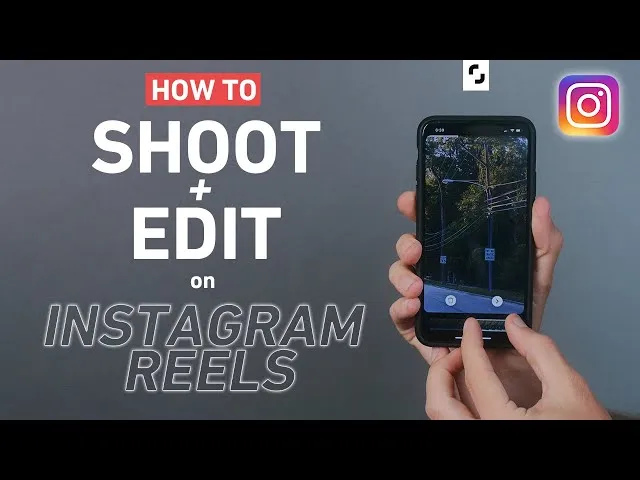
Beginner's Guide to Mobile Video Editing for Instagram Reels
Mastering Instagram Reels: Your Mobile Video Editing Journey Begins
Instagram Reels have taken the social media world by storm, offering a dynamic and engaging way to share short-form video content. Whether you're a small business owner looking to boost engagement, a content creator aiming for virality, or simply someone who loves sharing their life in a creative way, mastering mobile video editing for Reels is essential. The good news? You don't need a fancy editing suite or a powerful computer. Your smartphone is all you need to create professional-looking videos that capture attention.
This guide is designed for absolute beginners. We'll walk you through the fundamental steps of mobile video editing, from choosing the right app to adding those finishing touches that make your Reels stand out. Get ready to transform your raw footage into captivating stories that resonate with your audience.
Choosing Your Mobile Editing App: The Foundation of Your Reels
The first crucial step is selecting a mobile video editing app. The sheer number of options can be overwhelming, but for beginners, it's best to start with user-friendly apps that offer a good balance of features and simplicity. Here are a few popular and highly recommended choices:
Instagram's Built-in Editor
Before diving into third-party apps, remember that Instagram itself offers a surprisingly robust editor directly within the Reels creation interface. You can trim clips, add text overlays, apply filters, select music, and even record voiceovers. For simple edits and quick creations, this is often the fastest and most convenient option. It's ideal for understanding the basics of timing and sequencing.
CapCut
CapCut has become a favorite among TikTok and Reels creators for a reason. It's free, packed with powerful features, and remarkably intuitive. You'll find advanced editing tools like keyframing (for animated text and elements), speed adjustments, background removal, and a vast library of effects and transitions. CapCut is excellent for adding that extra polish and creative flair to your videos.
InShot
InShot is another excellent all-around video editor for mobile. It offers a clean interface and makes it easy to trim, merge, and split clips. You can add music, text, stickers, and even create slideshows. InShot also provides a good range of filters and effects, and its aspect ratio adjustments are perfect for ensuring your Reels fit the vertical format perfectly. It's a solid choice for a comprehensive yet beginner-friendly experience.
VN Video Editor
VN Video Editor is a powerful, free option that offers a more professional feel without being overly complex. It supports multi-track editing, allowing you to layer video, audio, and text more precisely. VN also boasts a wide array of transitions, effects, and color grading tools. If you're looking to experiment with more advanced techniques but still want an accessible interface, VN is a great contender.
Tip: Don't be afraid to download a couple of these apps and experiment. See which interface feels most comfortable for you. Most offer free versions that are more than capable for creating fantastic Reels.
The Editing Process: From Raw Footage to Engaging Reels
Once you've chosen your app, it's time to get editing! The core of video editing involves several key steps:
1. Importing and Organizing Your Footage
Start by importing all the video clips you plan to use into your chosen editing app. Most apps allow you to select multiple clips at once. It's a good practice to have a general idea of the story or sequence you want to create before you start importing, but don't worry if it's not perfectly planned. You can always rearrange clips later.
2. Trimming and Cutting: The Art of Conciseness
Reels are short, so every second counts. The most fundamental editing skill is trimming. This involves cutting out the beginning and end of a clip to remove any unnecessary or shaky footage. Most apps have a simple slider or drag-and-drop interface for this. You'll also want to cut out any awkward pauses or mistakes within a clip. The goal is to keep your video fast-paced and engaging.
3. Sequencing and Arranging Clips
Now, arrange your trimmed clips in the order you want them to appear. Think about the flow of your video. Does it tell a story? Does it build anticipation? Drag and drop your clips on the timeline to create the desired sequence. For Reels, a common technique is to use quick cuts between different shots to maintain viewer interest.
4. Adding Music and Sound Effects
Music is a crucial element of Reels. You can either use audio directly from Instagram's library (which is great for trending sounds) or import your own music or sound effects. Most editing apps allow you to adjust the volume of your original audio and the added music independently. Experiment with syncing your video cuts to the beat of the music for a more dynamic feel. Sound effects can also add emphasis and personality.
5. Text Overlays and Graphics
Text is vital for conveying information, adding context, or simply making your Reels more accessible (especially if viewers have their sound off). Use text overlays to add captions, titles, calls to action, or even humorous commentary. Most apps offer various fonts, colors, and animation options for your text. Remember to keep text legible and ensure it doesn't obscure important parts of your video.
6. Transitions and Effects
Transitions are the visual bridges between your clips. While Instagram's built-in editor has a few options, apps like CapCut and VN offer a wider variety, from simple fades to more dynamic wipes and zooms. Use transitions sparingly and purposefully. Too many or overly flashy transitions can be distracting. Effects can also enhance your video, but again, moderation is key. Filters can change the mood and aesthetic of your entire video.
7. Adjusting Speed and Playback
Speeding up or slowing down clips can add a dramatic or comedic effect. Most apps allow you to easily adjust the playback speed of individual clips. For instance, you might speed up a montage of a process or slow down a key moment for emphasis.
Final Touches and Exporting Your Reel
Before you hit 'share,' there are a few final steps to ensure your Reel looks its best:
Review and Refine
Watch your Reel from beginning to end, paying attention to the pacing, clarity, and overall impact. Are there any parts that drag? Is the text readable? Is the audio balanced? Make any necessary tweaks. It's often helpful to get a second opinion from a friend or colleague.
Color Correction and Grading (Optional)
For a more polished look, you can adjust the colors of your video. Most editing apps offer basic color correction tools to adjust brightness, contrast, saturation, and white balance. Some advanced apps even allow for color grading, which is about creating a specific mood or aesthetic. Even minor adjustments can make a significant difference in how professional your video appears.
Exporting Your Video
Once you're happy with your edit, it's time to export. Ensure you export in a high resolution (1080p is standard for Instagram) and at a frame rate that matches your original footage (usually 30fps). Your chosen app will have an export option, usually found by tapping a 'save' or 'export' button. This will save the video to your phone's camera roll, ready to be uploaded to Instagram.
Uploading to Instagram
Open Instagram, go to the Reels tab, and tap the camera icon. Select 'Upload' and choose your edited video from your camera roll. You can then add your caption, hashtags, and any final touches directly within Instagram before sharing. Remember to use relevant hashtags to increase discoverability!
Conclusion
Mobile video editing for Instagram Reels is an accessible and rewarding skill. By understanding the basic tools available in user-friendly apps and practicing the core editing techniques, you can create compelling content that captivates your audience. Don't be afraid to experiment, have fun with it, and let your creativity shine through. Happy editing!
Frequently Asked Questions
Is this guide beginner friendly?
Yes. This tutorial is written step-by-step for beginners.
Does this work in 2026?
Yes. This article is updated regularly with latest changes.
Where can I learn more?
Browse more tutorials on LoopGuy.




Comments (0)
No comments yet. Be the first to comment!
Leave a Comment