Chrome New Split View Is Now My Favorite Way to Use the Internet
Chrome’s New “Split View” Is Now My Favorite Way to Use the Internet
There are certain browser updates that come and go quietly. Then there are the rare ones that actually change the way you browse. Chrome’s new Split View belongs to the second category. It’s not flashy, but once you try it, you’ll wonder how you ever managed without it.
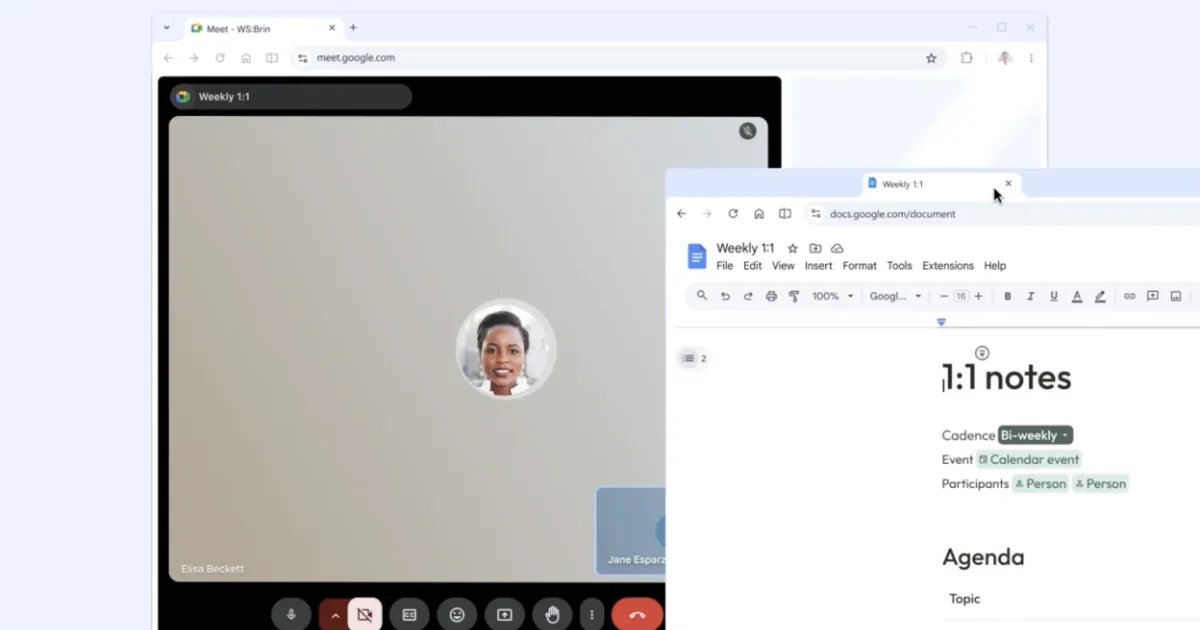
This update, rolling out in Google Chrome version 142, adds the ability to open two websites in the same tab — side by side. Think of it as multitasking for your browser, designed for people who live and work online.
🔍 Why Split View Matters
We live in tabs. Research on one, notes in another, and a dozen social media pages scattered in between. Until now, the only real way to multitask was to drag two Chrome windows next to each other — clunky, uneven, and easy to lose track of.
Split View fixes that. It lets you run two sites within one Chrome tab, neatly divided by a draggable line. Both sides act like independent pages — you can scroll, type, or switch URLs without breaking anything.
Here’s a simple comparison:
| Action | Traditional Browsing | Split View |
|---|---|---|
| Opening two sites | Requires two windows | Done within one tab |
| Adjusting layout | Manual window resizing | Drag divider easily |
| Taskbar clutter | Two entries | One |
| Focus control | Split across windows | Contained in one workspace |
| Ideal for | Casual browsing | Research, writing, productivity |
It’s a quiet revolution — the kind that makes browsing feel more organized, less chaotic, and frankly, more human.
⚙️ How to Enable Split View
If the feature hasn’t reached you automatically, here’s how to unlock it manually:
- Open Chrome and type this into the address bar:
chrome://flags/#side-by-side - Press Enter.
- Enable the flag titled “Side-by-side view.”
- Restart Chrome.
After relaunching, you’ll notice the new Split View options appear when right-clicking on tabs.
🧠 How It Works
There are two easy ways to start a split view:
- Right-click Method:
Right-click any tab and choose “Add tab to new split view.” Your current tab slides to one side, and you can select another open tab for the other half. - Drag Method:
Grab a tab and drag it toward the left or right edge of another tab. When a small “Create Split View” label appears, drop it there. The browser instantly divides into two functional panels.
Each half behaves independently. You can scroll on one side while typing on the other, mute one tab while the other keeps playing, or even close one half while keeping the other active.
🖱️ Toolbar Tools and Controls
Chrome has added a small Split View icon in the toolbar when the mode is active. Clicking it gives:
- Swap sides (flip left and right content)
- Close one pane without closing the tab
- Separate into normal tabs
- Exit split mode
Each side of the split tab also has its own “X” button so you can close it individually.
The system is lightweight — you don’t feel like you’re managing two browsers at once.
💼 Real-Life Uses
Here are a few ways Split View genuinely helps:
For Professionals
- Compare data across two dashboards.
- Take meeting notes while attending a Google Meet.
- Write blog posts or reports with research open beside them.
- Check emails while viewing project boards.
For Students
- Read an article while typing notes into Google Docs.
- Watch a lecture and follow the transcript simultaneously.
- Open an online dictionary while writing an essay.
For Casual Browsing
- Watch YouTube while scrolling Twitter.
- Compare product prices between Amazon and eBay.
- Chat on Messenger while reading the news.
🧱 Split View vs. Snapping Windows
Windows and macOS already allow you to “snap” two Chrome windows side by side. So why bother with Split View?
The difference lies in fluidity. With Split View, both sites exist within one tab’s environment — faster switching, less clutter, no confusion.
Quick comparison:
| Feature | Snapped Windows | Chrome Split View |
|---|---|---|
| Requires multiple windows | ✔️ | ❌ |
| Uses single tab | ❌ | ✔️ |
| Adjustable divider | ✔️ | ✔️ |
| Shared tab controls | ❌ | ✔️ |
| Minimal interface | ❌ | ✔️ |
| Keyboard shortcuts | Partial | Full Chrome shortcuts |
Especially on ultrawide monitors, Split View feels tailor-made. Instead of juggling resized windows, you just divide your Chrome tab and get back to work.
🧩 Small Caveats
Split View is still new. Some users report minor quirks — resizing can be finicky, and certain web apps may not render perfectly in narrow views.
Also, since both halves run under one Chrome process, a slow or crashing tab can freeze both panels. But overall, it's impressively stable for a first release.
Frequently Asked Questions
Is this guide beginner friendly?
Yes. This tutorial is written step-by-step for beginners.
Does this work in 2026?
Yes. This article is updated regularly with latest changes.
Where can I learn more?
Browse more tutorials on LoopGuy.




Comments (1)
Leave a Comment