Make Windows 11 Faster: A Tutorial
Boost Your PC: A Tutorial on How to Make Windows 11 Run Faster
Is your Windows 11 computer feeling sluggish? Don't worry, you're not alone. Many users experience a slowdown after some use. Fortunately, there are several effective ways to optimize your system and get it running at its best. This tutorial on how to make Windows 11 run faster will guide you through practical steps to reclaim your PC's speed and responsiveness.
We'll cover everything from simple software adjustments to understanding background processes that might be hogging resources. By the end of this guide, you'll have a much snappier and more enjoyable computing experience.
Optimize Startup Programs
One of the most significant factors affecting boot times and overall system responsiveness is the number of programs that launch automatically when Windows starts. Many applications are configured to start with your PC by default, even if you don't use them regularly.
Identify and Disable Unnecessary Startup Apps
Windows 11 makes it easy to manage these. Open Task Manager by pressing Ctrl Shift Esc. Navigate to the 'Startup apps' tab. Here you'll see a list of applications that start with Windows, along with their 'Startup impact'.
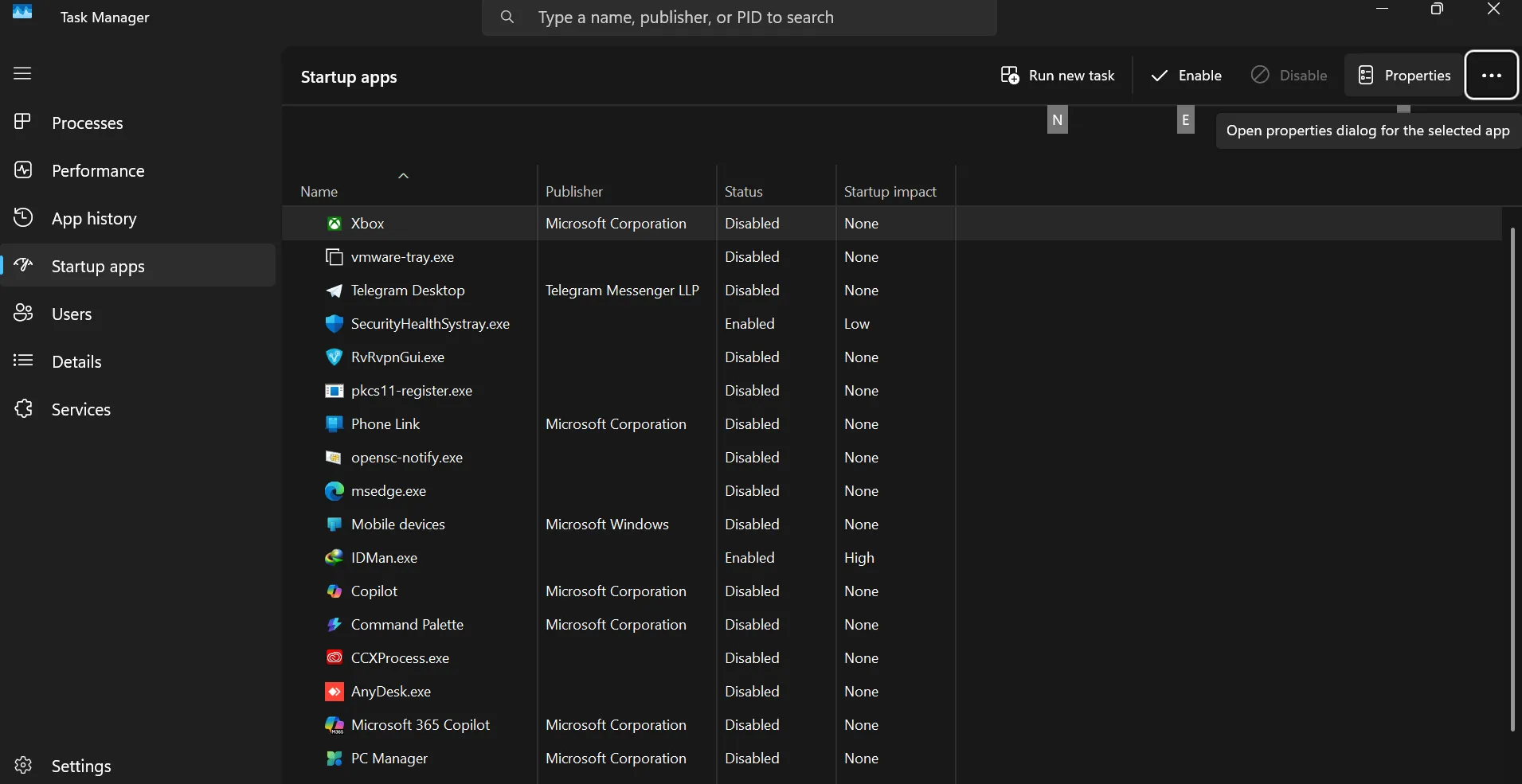
Review this list carefully. For any application you don't need to run immediately upon booting up, right-click on it and select 'Disable'. Be cautious not to disable essential system processes or antivirus software.
Understanding Startup Impact
The 'Startup impact' column (High, Medium, Low) gives you a general idea of how much each app affects your startup performance. Prioritize disabling high-impact applications that you don't frequently use.
Clean Up Your Disk Space
A cluttered hard drive can significantly slow down your PC. Temporary files, old downloads, and system junk can accumulate over time, taking up valuable space and making it harder for Windows to operate efficiently. Regularly cleaning your disk is a crucial part of making Windows 11 run faster.
Utilize Disk Cleanup
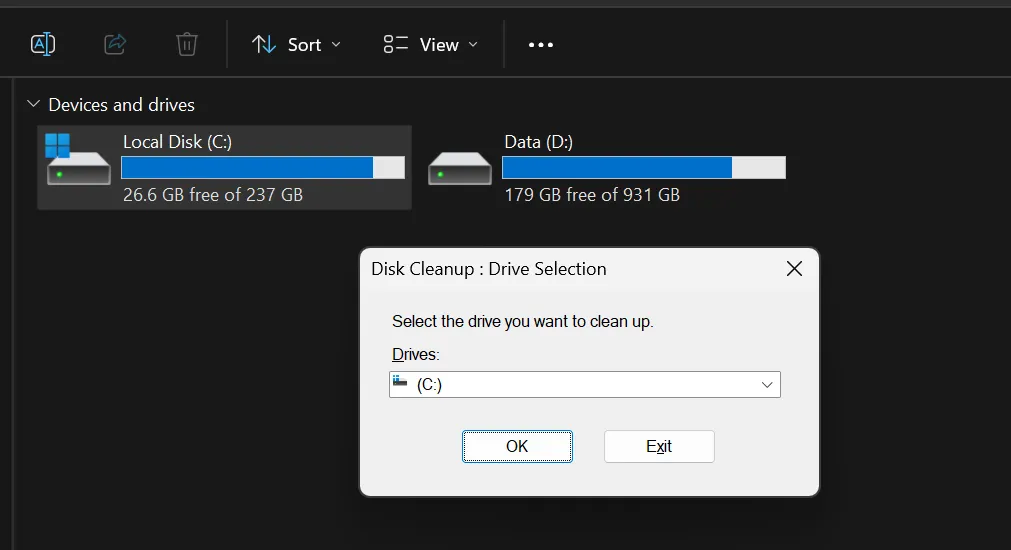
Windows has a built-in tool called Disk Cleanup that can help. Search for 'Disk Cleanup' in the Start menu and open it. Select the drive you want to clean (usually C:). The tool will scan for files that can be safely removed.
You'll see categories like 'Downloaded Program Files', 'Temporary Internet Files', 'Recycle Bin', and 'Temporary files'. Check the boxes next to the types of files you want to delete. For a more thorough cleanup, click 'Clean up system files' to scan for even more items, including old Windows update files.
Uninstall Unused Applications
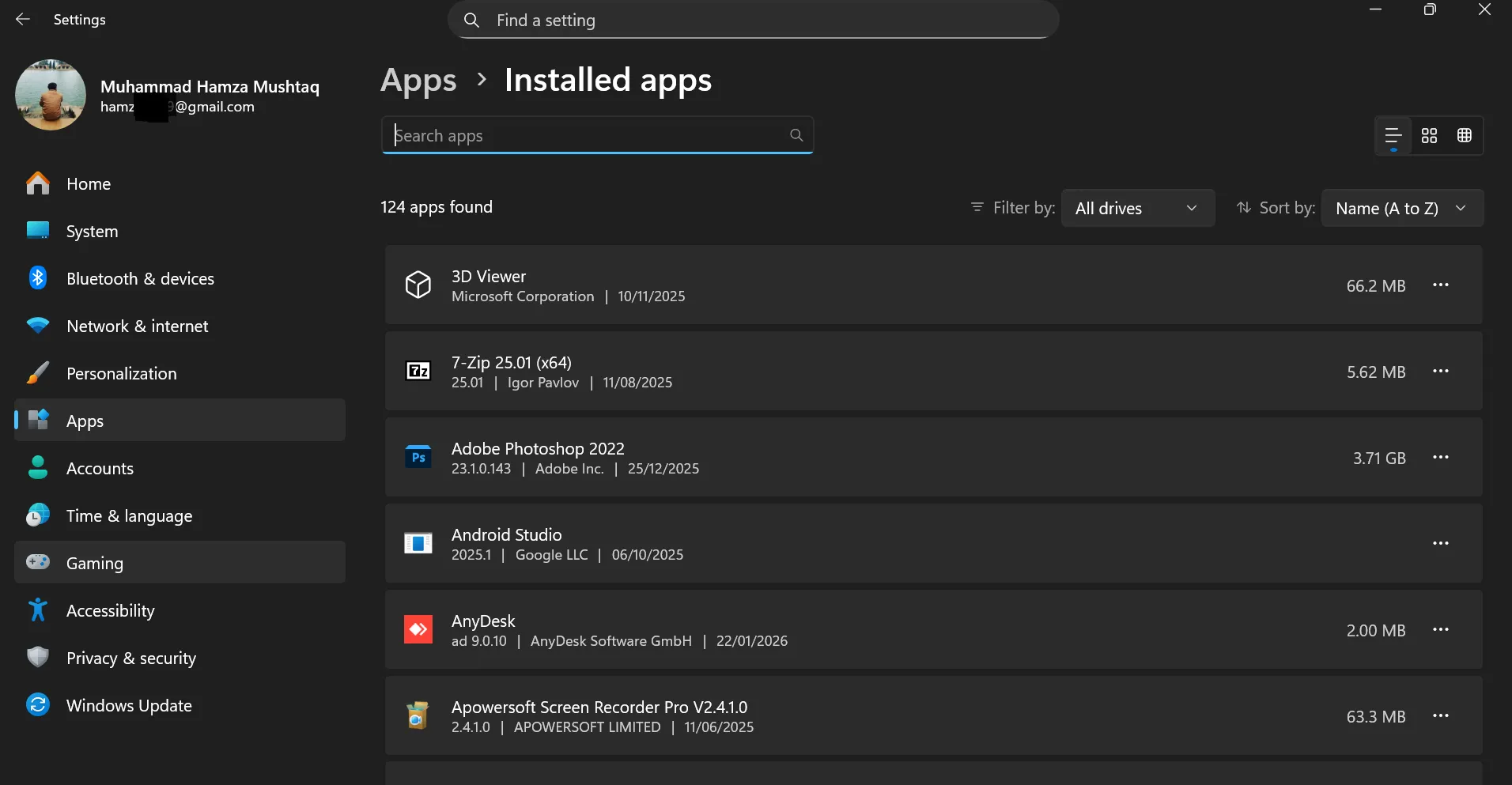
Beyond temporary files, having too many installed applications can also impact performance. Go to Settings > Apps > Installed apps. Scroll through the list and uninstall any programs you no longer use. This frees up disk space and reduces the potential for background processes associated with these apps.
Manage Background Apps
Windows 11 allows many apps to run in the background, even when you're not actively using them. This can consume system resources like CPU and RAM, slowing down your PC. Controlling these background processes is key to a faster Windows 11 experience.
Adjust Background App Permissions
You can manage which apps are allowed to run in the background. Go to Settings > Apps > Installed apps. Click the three dots next to an application and select 'Advanced options'. Under 'Background apps permissions', you can choose from 'Always', 'Never', or 'Power optimized'.
Setting this to 'Never' for apps you don't need to update or run in the background can significantly improve performance. Again, be mindful of apps that might require background activity for essential functions.
Review Power Settings
While not directly about background apps, your power plan can influence performance. Go to Settings > System > Power & battery. For desktops, ensure you're using a 'Balanced' or 'High performance' plan. For laptops, consider switching to 'Balanced' when plugged in for optimal performance.
Update Windows and Drivers
Keeping your Windows 11 operating system and hardware drivers up-to-date is crucial for performance, security, and stability. Updates often include optimizations and bug fixes that can directly address performance issues.
Windows Updates
Regularly check for Windows updates. Go to Settings > Windows Update. Click 'Check for updates' and install any available updates. It's a good practice to restart your PC after significant updates are installed.
Driver Updates
Outdated drivers, especially for your graphics card, network adapter, and chipset, can cause performance bottlenecks. While Windows Update sometimes handles driver updates, it's often best to visit the manufacturer's website (e.g., NVIDIA, AMD, Intel, your laptop manufacturer) to download the latest drivers directly.
Visual Effects and Transparency
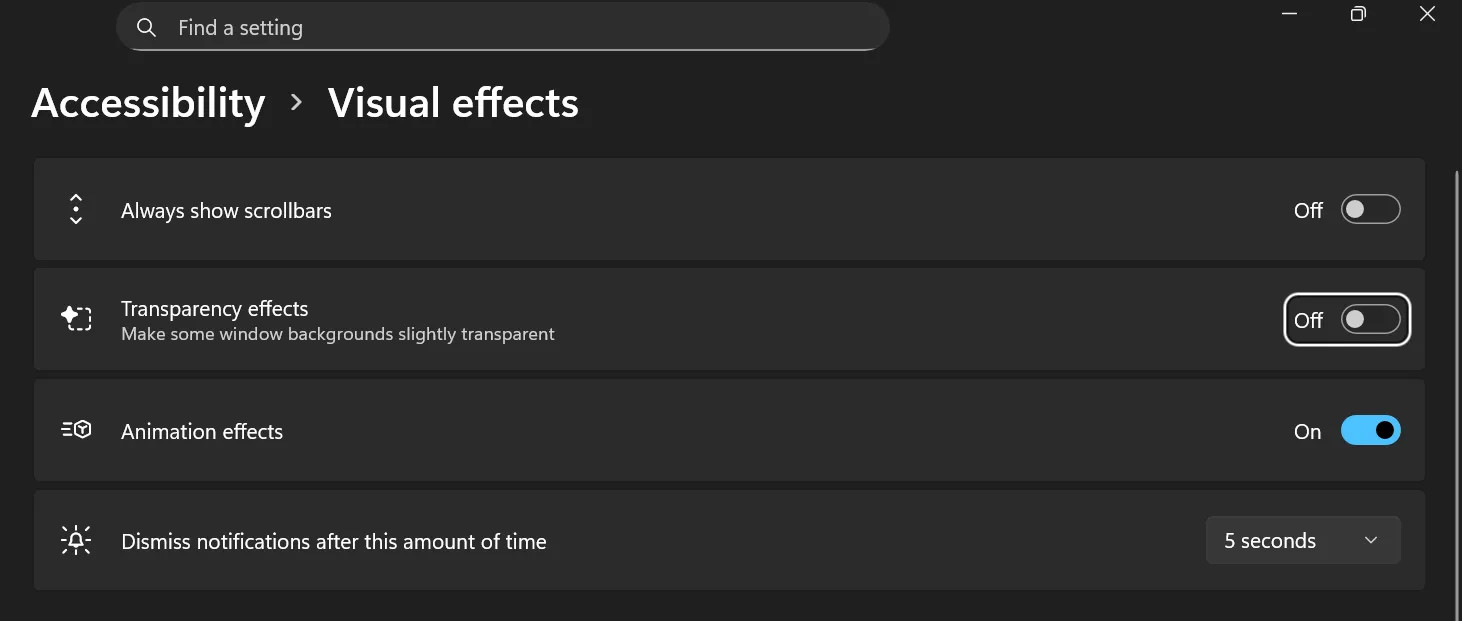
Windows 11 comes with a lot of visual flair, like animations and transparency effects. While these can make the OS look modern, they can also consume system resources, particularly on older or less powerful hardware. Reducing these can be a quick win for making Windows 11 run faster.

Adjust Visual Effects Settings
To tweak these, search for 'Performance' in the Start menu and select 'Adjust the appearance and performance of Windows'. In the 'Performance Options' window, under the 'Visual Effects' tab, you have two main options:
- 'Let Windows choose what's best for my computer': This is the default setting.
- 'Adjust for best performance': This will disable most visual effects, making Windows look more basic but significantly faster.
You can also choose 'Custom' and manually select which effects to enable or disable. For a significant speed boost, selecting 'Adjust for best performance' is recommended.
Disable Transparency Effects
Transparency effects can be found under Settings > Personalization > Colors. Toggle 'Transparency effects' to 'Off'. This might seem like a small change, but it can contribute to a smoother experience.
Consider Hardware Upgrades (If Necessary)
While this tutorial focuses on software optimizations, sometimes the most effective way to make Windows 11 run faster is to address underlying hardware limitations. If you've tried all software tweaks and your PC still struggles, it might be time to consider hardware upgrades.
RAM (Memory)
Insufficient RAM is a common cause of a slow computer, especially when multitasking. If your PC frequently uses close to 100% of its RAM, upgrading to more RAM (e.g., from 8GB to 16GB) can make a dramatic difference.
SSD (Solid State Drive)
If your computer is still using a traditional Hard Disk Drive (HDD), upgrading to a Solid State Drive (SSD) is perhaps the single most impactful upgrade you can make. SSDs are dramatically faster for booting up, loading applications, and transferring files.
Processor (CPU) and Graphics Card (GPU)
While less common for general slowdowns unless your tasks are very demanding, an outdated CPU or GPU can limit overall system performance. However, these are typically more complex and expensive upgrades.
Conclusion
By following this tutorial on how to make Windows 11 run faster, you can significantly improve your PC's performance without needing to buy new hardware. Start with the simpler steps like managing startup programs and cleaning disk space, and gradually move to more in-depth settings. A well-optimized Windows 11 system will feel much more responsive, allowing you to work and play without frustrating slowdowns.
Frequently Asked Questions
Is this guide beginner friendly?
Yes. This tutorial is written step-by-step for beginners.
Does this work in 2026?
Yes. This article is updated regularly with latest changes.
Where can I learn more?
Browse more tutorials on LoopGuy.




Comments (0)
No comments yet. Be the first to comment!
Leave a Comment